Tutorial: Working with Sound
You're clicking around the web. You go to one page. Then another. And then, not
know what to expect, you click over to the most annoying thing in the world: a page that loads with a crazy background sound!
Even if we hate that webpage, we know that sound is good. Sound is popular. Sound can be a vital part of composing online.
1. Recording Sounds
To put sounds online, they need to be saved in one of several digital formats.
Some of the most common are .mp3, .mid, .midi, m3u, and .wav. If you have a sound file and are
not sure if it will work online, you'll probably need to test it in your browswer.
 You may be able to record
sounds with a built-in microphone, but external mics are usually a bit better. You
may even be able to find an online tutorial describing how to record audio using a cell phone.
You may be able to record
sounds with a built-in microphone, but external mics are usually a bit better. You
may even be able to find an online tutorial describing how to record audio using a cell phone.
There are a few digital audio recorders available on campus (for checkout); buying a decent
ones will run you twenty to fifty bucks.
2. Using Sound Archives
If you want additional sounds to edit into a sound file, you may find what you want in an online sound archive. I wide selection of music is available as open source audio at such archives, meaning you won't be breaking copyright law by using such recordings.
3. Editing Sound Files
 Once you have a sound
file you want to work with, or several sound files, you should think of them like images:
sound files need editing to make them good. Audacity is an excellent open source sound editor that will run on macs and pcs.
Once you have a sound
file you want to work with, or several sound files, you should think of them like images:
sound files need editing to make them good. Audacity is an excellent open source sound editor that will run on macs and pcs.
Using Audacity is fairly easy, as your opening pane is a simple sound-file interface like this
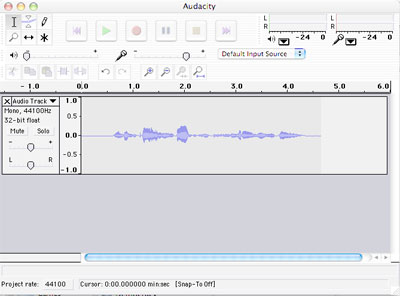
We'll work with Audacity a bit in class; several tutorials are available online,
including this video tutorial for students in Mr. Brown's music class:
4. Embedding Sounds
Perhaps the simplest way to use sound files on a web page, and a way that gives the user
plenty of control over when the sound plays (and for how long), is to embed the sound file.
We talked a bit about embedding video files; sound files work the same way. This code will
make the following sound bar appear, as long as the sound file "audio.wav" is in the right
directory:
<EMBED SRC="images/audio.wav" loop="face" autostart="false" VOLUME="100" HEIGHT="20" WIDTH="400">
5. Podcasts
With the rise of YouTuberific video, audio podcasts may be going out of style. In fact,
it seems like more and more when people use the word "podcast" they are referring to
video podcasts. But podcasting began as an audio art.
There is still
plenty of valuable audio content online, and with a podcast you can make your audio available
through iTunes.
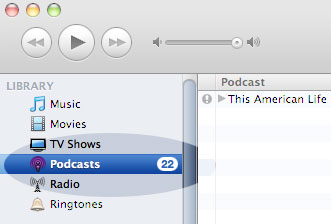
We probably won't make podcasts in class, but if you want to learn how, it's easy. As with everything else, plenty of tutorials exist online. This one
is particularly easy to follow.